

Finally, the latest version for Windows is available and ready for all compatible devices. Today I checked my system for updates, and I saw this.

My system is eligible and compatible with Windows 11. But I can't wait for Windows Updates to install Windows 11 for me. Also, as per Microsoft, most PCs will receive the update by mid-2022. I can't wait that long.
I need to install it manually and explore the Windows 11 new features. So now, How to install Windows 11?
Prepare for Windows 11 Installation
First, we need to download Windows 11 installation media. Before downloading the Windows 11 installation media, I am assuming your system is ready too. If you are not sure, you can use PC Health Check App. Visit the following URL and click on the "Download PC Health Check App" link to download it.
Note: You will need Windows 10, version 1803 or later, to install the "PC Health Check App." If you are using an older version of Windows, it is an excellent time to update your Windows version.
https://www.microsoft.com/en-in/windows/windows-11#pchealthcheck

Once the installer file for the "PC Health Check App" is ready, you need to install it. Installation steps are straightforward. If you still need to check the details steps, you can click on this link. Assuming it is installed the refer to the following screenshots for possible scenarios.
Warning 1: As shown in the following image, we have an issue with TPM 2.0. It is mandatory for Windows 11. If you want to learn more about TPM 2.0 and How to enable it, refer to this article.

Warning 2: In the following image, we have a problem with Secure Boot. If your hardware supports secure boot, you can enable it. For information, you can refer to this article.

Warning 3: Apart from this, we need to ensure our hardware also supports Windows 11. As shown in the following image, we are missing lots of requirements.

Following are the needed requirements.
Processor: 1 gigahertz (GHz) or faster with two or more cores on a compatible 64-bit processor or system on a chip (SoC).
RAM: 4 GB Minimum.
Storage: 64 GB or larger storage device Note: See below under "More information on storage space to keep Windows 11 up-to-date" for more details.
System firmware: UEFI, Secure Boot capable. Check here for information on how your PC might be able to meet this requirement.
TPM: Trusted Platform Module (TPM) version 2.0.
Graphics card: Compatible with DirectX 12 or later with WDDM 2.0 driver.
Display: High definition (720p) display greater than 9" diagonally, 8 bits per color channel.
Internet connection and Microsoft account: Windows 11 Home edition requires internet connectivity and a Microsoft account.
Switching a device out of Windows 11 Home in S mode also requires internet connectivity. Learn more about S mode here.
For all Windows 11 editions, internet access is required to perform updates and download and take advantage of some features. In addition, a Microsoft account is required for some features.
Download Windows 11 Installation Media
I hope you are hardware meets all the requirements; in that case, visit the following URL
Note: It is very crucial to have backups of all the essential files.
If you visit the above URL, you may see we have three options to Download Windows 11.
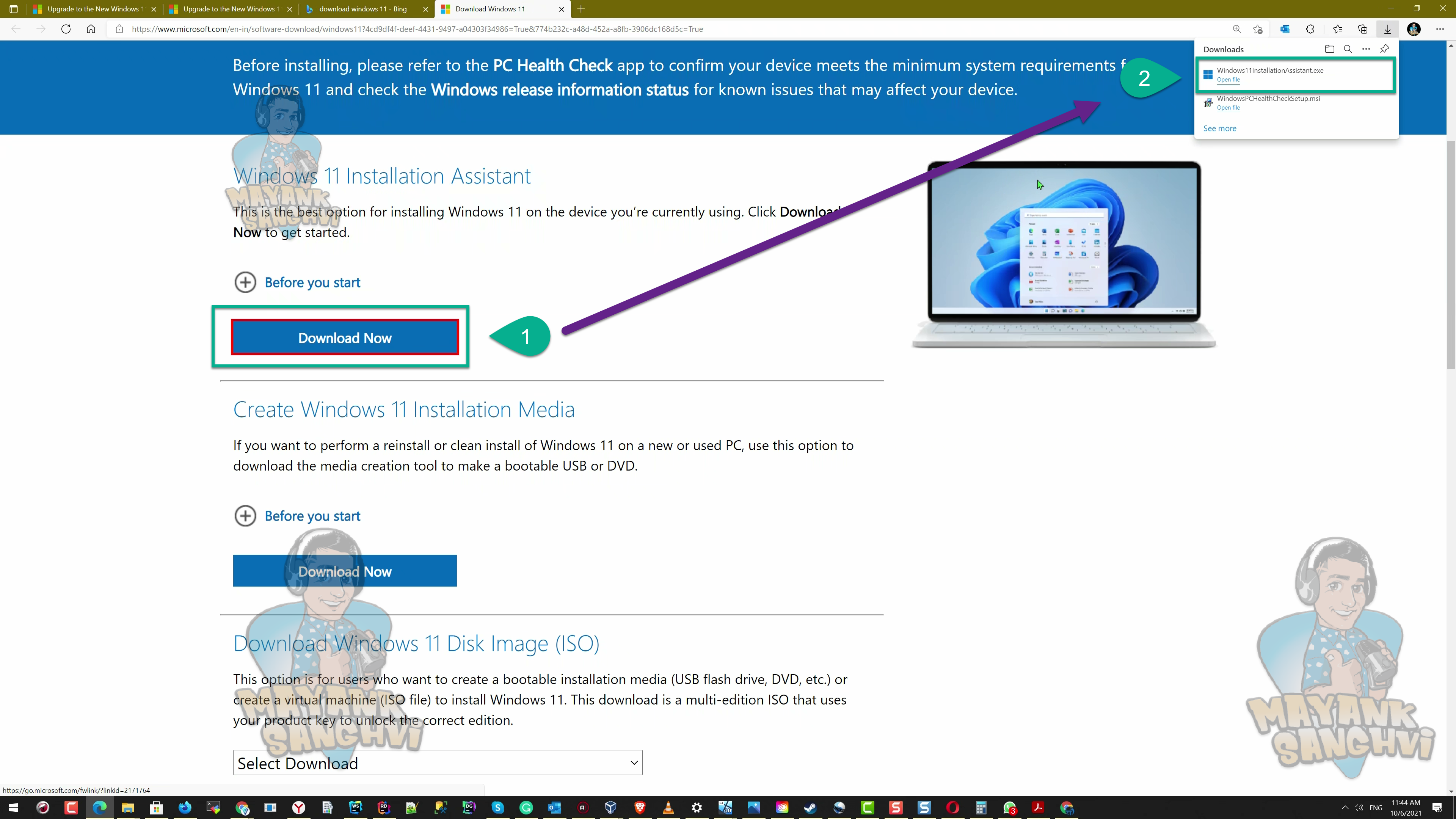
- Windows 11 Installation Assistant: It is the best option for installing Windows 11 on the device we are currently using. I need to install it on the machine I am currently using. May it risk? Yes. What are the risks? I can discuss it in a separate article.
- Create Windows 11 Installation Media: It is an excellent option to perform a clean Windows 11 installation. What do you mean by clean Windows 11 installation? In simple words, replace or format and install. I don't perform a clean installation because I don't create backups and reinstall all the software. It is not for me.
- Download Windows 11 Disk Image (ISO): The last option is downloading a Windows 10 ISO image. It is if we need to save the ISO file. Create a bootable disk or USB. If you want to learn How to create Windows 11 bootable USB drive, you can refer to this article.

I selected the first option, and I want to upgrade my Windows 10 to Windows 11. First, click on the Download button and then launch the "Windows 11 Installation Assistant." If the user account controller asks for your permission, confirm the executable file and click the "Yes" button.

The first window in the "Windows 11 Installation Assistant" is for the "Terms and Conditions," read it carefully. Then, if you agree with it, you can click on the "Accept and Install" button.

After this, "Windows 11 Installation Assistant" will download the Windows 11 setup files. It will take some time based on your internet speed. After the download, "Windows 11 Installation Assistant" will verify the downloaded files, and finally, in the last step, it will start the installation for Windows 11. Again, it will take some time; you can still use your system during the Windows 11 installation. Once the installation reaches 100%, you need to restart your machine for the rest of the process. Refer to the following different images of Windows 11 installation progress.


Save your work and restart.


