

In this article, we will learn How to create USB installation media for Windows 11. Then, we can use the USB for a fresh Windows 11 installation.
To create Windows 11 USB Media, we need first to visit the following URL.
https://vlgo.in/DownloadWindows11
On visiting the above URL, it will redirect us to Windows 11 Official download page.
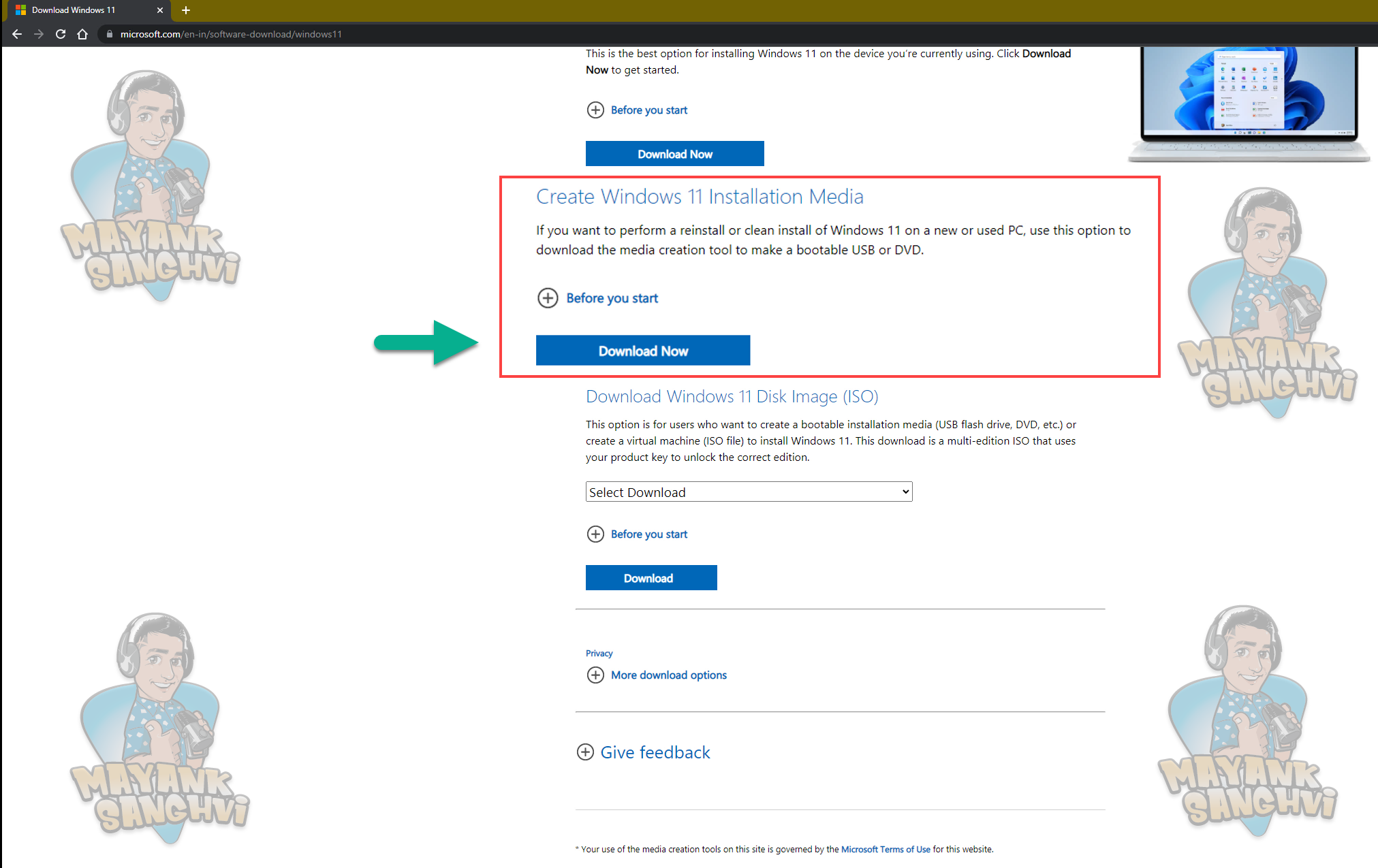
Here we three options to download Windows 11, and we are interested in the second option. The second option will download a "Media Creation Tool," which helps us create a bootable USB media or ISO disk image.
Click on the "Download Now" button to download the media creation tool, followed by saving "Media Creation Tool."

Once the download is complete, launch the "Media Creation Tool." Following are the different "Media Creation Tool" screens.

On the first screen, the "Media Creation Tool" will download some necessary files.

On the second screen, we need to read and agree with the terms and conditions.

On the third screen, we need to select the "Language" and Windows 11 Edition. If you need to install Windows 11 on the same machine, you may choose the "Use the recommended options for this PC" checkbox. Select the appropriate option and then click on the "Next" button.

On the fourth screen, we need to select the media type. This article is for USB, so that we will choose the first option, "USB flash drive." Select the correct options as per your need and then click on the "Next" button.
Finally, we need to select the USB drive we need to use for the media creation. Before clicking on the "Next" button, you need to be sure you chose the correct drive. Be aware that the drive you selected will be formatted, and Windows 11 installation files will replace all its content. Therefore, it is always a good practice to have a backup for your essential files. We are using a USB drive dedicated to the Windows installation. We will not lose anything, so we are good for now, and we can click on the "Next" button. If you are okay with your USB selection, click on the "Next" button to continue. Following is the properties image for our USB drive.

Following are some articles which may help you with Cloud Backups and USB Drive Selection
Once you click on the "Next" button, "Media Creation Tool" will download, verify and add the Windows 11 installation files within your selected USB drive. The time required for the step is highly dependent on your network speed.


Once the "Media Creation Tool" is done with all the operations, you can see the successful message, as shown in the following image.

On the last screen, we can click on the "Finish" button to close the "Media Creation Tool."
Once the "Media Creation Tool" is closed, you can remove the USB drive and use it for the Windows 11 installation.